Turn travel photos into a journal with Claude or ChatGPT
Keep the assistant you already use; give it a place to save the journey. Follow one demonstration photo and supplied remark from browser upload to saved timeline content. The worked example states exactly which assistant and service environment were tested; it is not a real restaurant or journey.
Travel journaling with Claude: photos, notes and a trip timeline
Start with one trip and a short remark, then ask Claude to organize what you recorded. A compatible ChatGPT workspace can use the same workflow. The journal prompts below create and retrieve saved trip records; they do not import your previous conversations. Check descriptions and quoted remarks before sharing the result.
1 · Connect your assistant
Open the current assistant setup guide, add https://vifo.app/mcp, and authorize your Vifo account. Choose a permission level that includes recording and upload links; read-only access cannot save this journal. Assistant subscriptions and workspace controls are separate from Vifo’s own plan. The setup page is the source for current client requirements, documentation-check dates and actual test coverage.
2 · Start one trip
For this worked example, say: “Create a trip called Photo-to-journal demonstration, dated 13 October 2026, timezone UTC. This is a software demonstration, not a real journey.” For your own trip, supply your dates and time zone; the assistant should ask for missing details rather than guess. Open My trips in Vifo to check the saved trip.
3 · Add photos and your own words
Say: “Give me an upload link for this trip.” Open the returned link on your phone, pick the photos and optionally type a note. Dropping pictures into a chat does not automatically send files to Vifo. Anyone holding an upload link can contribute to that trip without signing in; keep it with the people you intend to invite.
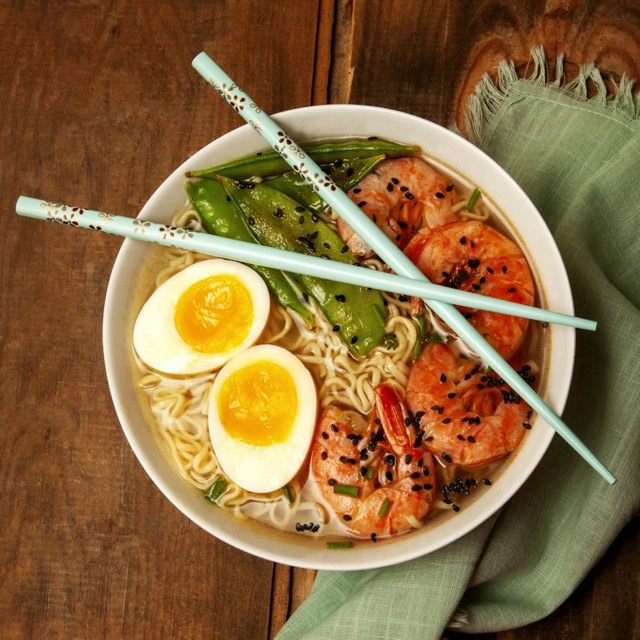
Example input: the demonstration photo below and the invented remark “six seats, and the owner sings while he cooks.” Say: “Keep this exactly as supplied.” The photo and remark are separate inputs. The invented remark illustrates verbatim storage; it is not evidence of an actual restaurant or journey.
six seats, and the owner sings while he cooks.
Your original remark — stored as supplied, separate from the assistant’s descriptions.
4 · Ask your agent to organize the day
Say: “Organize today’s photos and notes into the trip timeline.” After you confirm the upload is done, the assistant reads your notes, views the photos, writes descriptions and adds dated timeline sections. Ask it to quote saved remarks exactly and review those quotes. Vifo stores the result; your connected assistant does the writing.
Saved output from the checked example
Photo description after correction: A bowl of noodles with egg and shrimp.
Timeline heading: Lunch · demonstration
Your words: “six seats, and the owner sings while he cooks.”
Check the description before keeping it. In this example, the first description was “A bowl of noodles with egg.” The correction adds “and shrimp”; the original remark above stays unchanged. Ask your assistant to correct both the photo description and any affected timeline text, while keeping your original remark. Saving a description does not make it factually correct.
5 · Revisit and search the journal
Open the owner page to read the day-by-day result. Later ask: “Find the note about the six-seat restaurant.” The search tool can retrieve stored remarks, media descriptions and journal blocks; the assistant should quote the matching record and identify the trip. In this illustration the answer is the exact restaurant remark above, not a newly invented restaurant name. Vifo does not automatically read your historical chats or import arbitrary email, blog or document archives.
6 · Share the finished trip
When the page is ready, ask for a public link. It opens a separate reader page; viewers need no account. Public reader pages omit photo GPS coordinates and video transcripts. A link is readable by anyone who holds it, so review the visible text and photos before sending it; you can revoke or rotate the link later.
Open the saved output for this exact demonstration photo and remark. For larger, separate journals, read Lisbon, three days on foot and Iceland in February. For the connection protocol, see the travel journal MCP overview.
Vifo Free covers your 10 most recent trips with 50 photos each. Plus is $6.9/month or $39.9/year, with unlimited trips, video transcription and 50 GB fair use. Assistant subscriptions and permissions are separate. Setup facts were checked against official client documentation on 13 October 2026; see the sources in /connect.
Connect your assistant, then start one trip with photos or your own words.
Connect your agent →